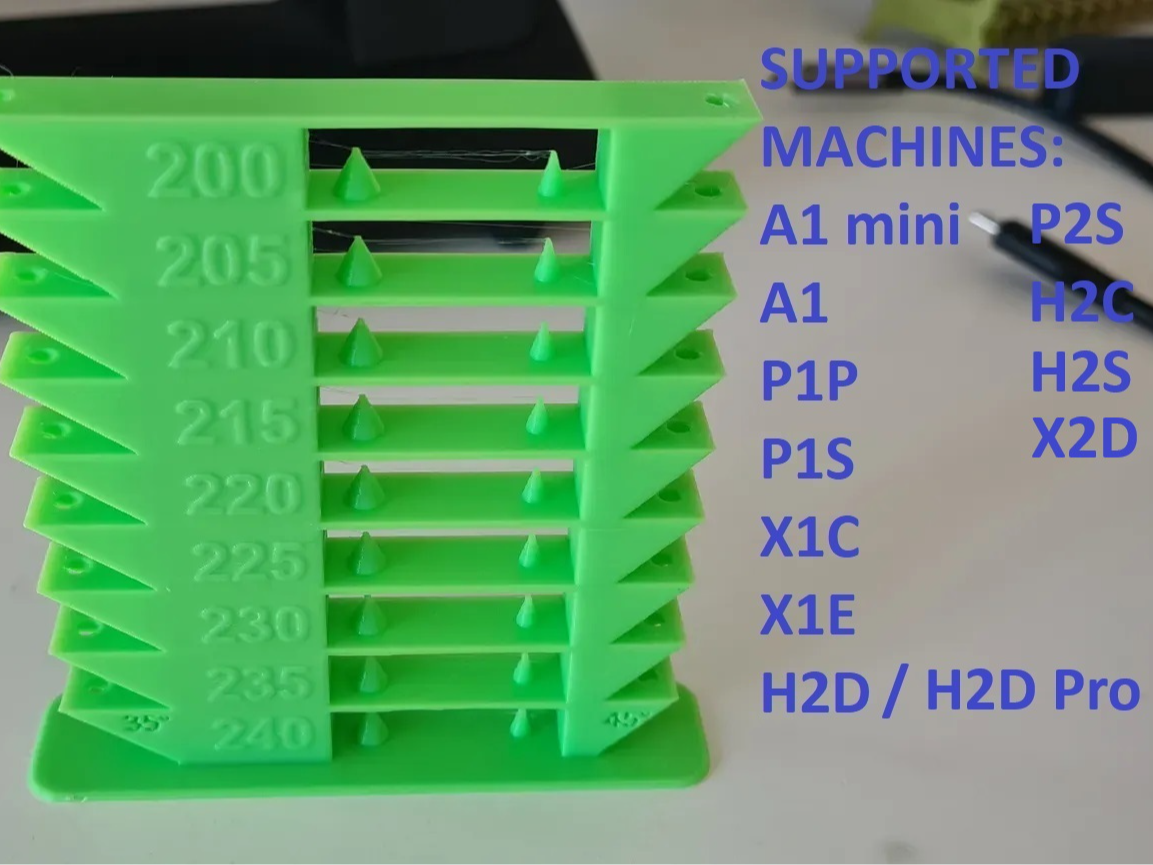
About this 3D model
Boost Me I've been maintaining this temperature tower model since MakerWorld was first started, making sure to keep it up-to-date with all the changes and new printer types. Your support is greatly appreciated ? A 3D printing temperature tower is a calibration model with different temperature zones to find the ideal nozzle heat for a specific filament. Printer models currently supported: A1, A1 mini, P1P, P1S, X1C, X1E, P2S, H2C, H2S H2D, H2D Pro IMPORTANT: There are 2 ways to use the temperature towers, one way that will only work with a computer BambuStudio app, and another way that will only work on mobile app. BambuStudio is the recommended way to run, and it's the only way 100% guaranteed to work. Usage Instructions for Bambu Studio (for PC/laptop): Click on “Download STL/CAD Files” and choose your printer model and the file you want to use (PLA for regular temperatures, PETG for high temperatures) EXAMPLE: For checking PLA on P1S printer, choose the file named “P1S - PLA - 200-240.3MF” Open the .3MF file using Bambu Studio. You will get a warning that the printer has a modified gcode under “layer_change_gcode” - that's ok. This means you've opened the correct file. Click on “Slice Plate” and then “Print Plate”. IMPORTANT: Do not modify anything in the Bambu app prior to printing. Any modification might affect the modified gcode in the project file. (The only thing you can safely modify is the build plate type) Usage Instructions for Mobile app: Click on “Prepare to print” In the next screen, make sure to choose the correct profile matching your printer type from the profiles list Next you will be presented with the printer and plate type, scroll down to see the filament list. You will see 9 different filaments, for each select the filament you wish to test (same filament). Click on “Start Print” Check out my latest addition - Debugger for preventing issues in multicolor prints